








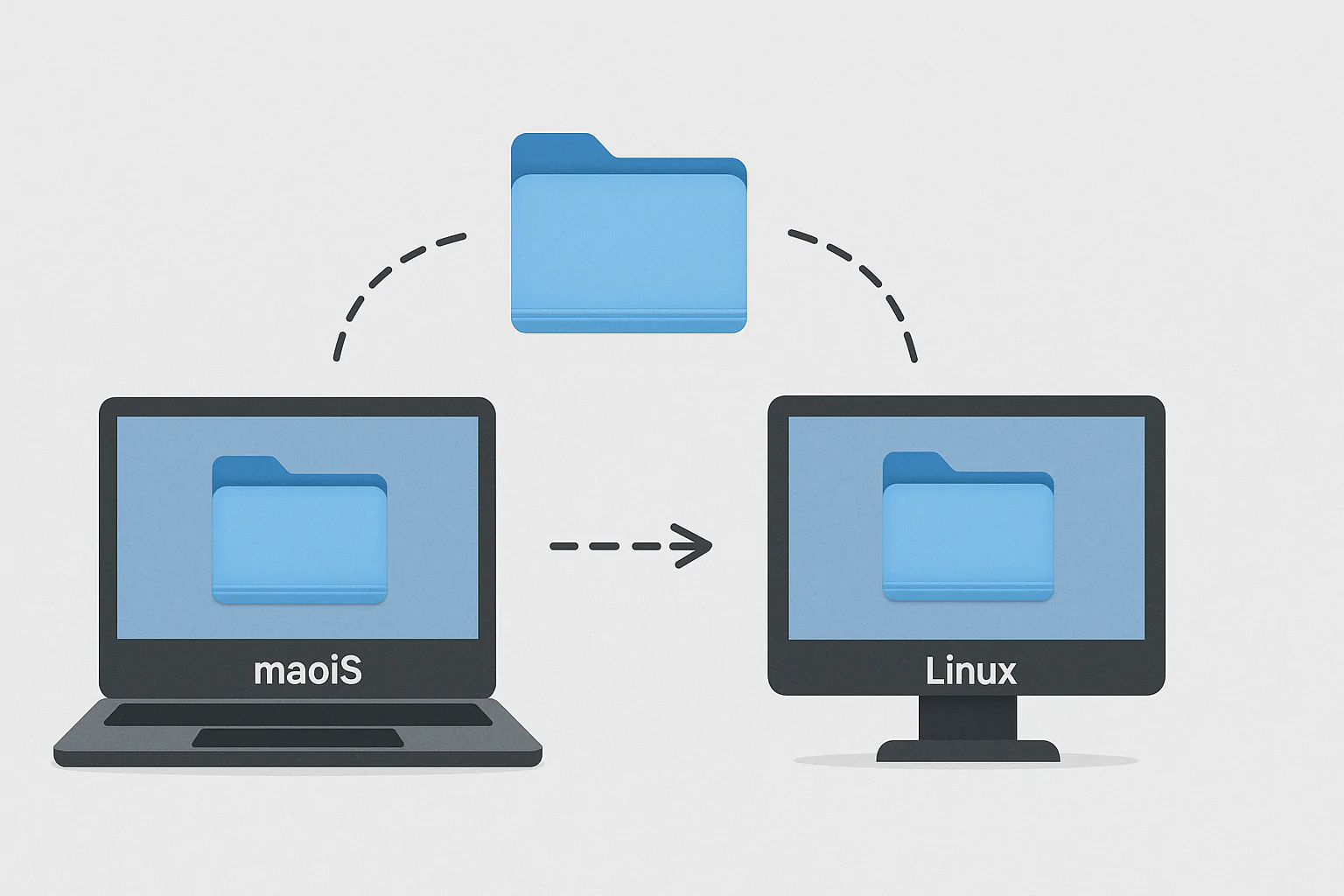



















Picture yourself in a café, where Tailscale Ubuntu access could help you reach a file at home. Your file sits on your home computer, but you have your other device with you. You want to install Tailscale so you can reach that machine without going home. This guide follows that task from setup to your first connection, with checks along the way. Once that works, you can choose which extra features suit your needs.

Tailscale on Ubuntu links your devices in a private group called a tailnet. It uses WireGuard, software that protects the links between those devices. Its Linux client, the software you run on your machine, is open source under the BSD-3-Clause license. That means its source code is available, as the GitHub project explains. But you do not need to study that code to follow these steps.
First, choose a setup method, sign in, and find your home computer’s address. Then use another device to open a shell on your home computer. A shell lets you type instructions for that computer from your other device. You can later give it a short name and review who may connect. Before you start, have both devices ready so you can test the link yourself. You can leave the extra features until that first shell works, then choose what you need.
Install Tailscale on Ubuntu

Open a terminal, the window where you type instructions, on the home computer. Use an account with root rights, which allow it to change system software. These methods are like two recipes for the same dish, so choose just one. Have your Ubuntu release name ready if you plan to use the apt steps below.
Take the short path
The official setup guide supplies this line, which downloads and runs its setup script.
curl -fsSL https://tailscale.com/install.sh | shOnce it finishes, keep the terminal open because you still need to sign in. Installation puts the software in place, but signing in joins the machine to your group.
Choose the apt repository
An apt repository is a software source your system uses to get programs. The package page gives Ubuntu 26.04 steps using the release name resolute. First, follow its full lines to make the key folder and fetch the signing key. Then use its source list line to add the software source for that release.
This last line refreshes the software list and adds the program to your machine. Add the source first, so apt knows where to find the program.
sudo apt-get update && sudo apt-get install tailscaleFor older releases, use noble for 24.04 LTS, jammy for 22.04 LTS, or focal for 20.04 LTS. Check both download paths before you configure the source, because both contain that release name.
Sign in and reach your home server

Your Tailscale Ubuntu connection needs both devices in the same group before you try remote access. Think of that group as a private hallway between your devices. Sign in on each device so both join that same private hallway.
The first line prints a browser link, which you open to sign in. After sign-in, the second line shows your device’s IPv4 and IPv6 addresses. These are two forms of device address, so keep them with your notes.
sudo tailscale up
tailscale ip
Keep the full IPv4 address from your screen, which starts with 100.. Also, use the tool’s status subcommand to check the devices in your group. Check that both devices appear before you try the shell, so the group is ready.
This line uses SSH, a way to open a shell on another computer, to reach home. Run it from your other device, using the details you found on the home machine.
ssh [email protected]Replace user with your home account name and the sample address with your own. This uses the home machine’s normal SSH service, which fresh Ubuntu desktops may lack. Those desktops may need sudo apt install openssh-server first, or you can use managed sign-in below.
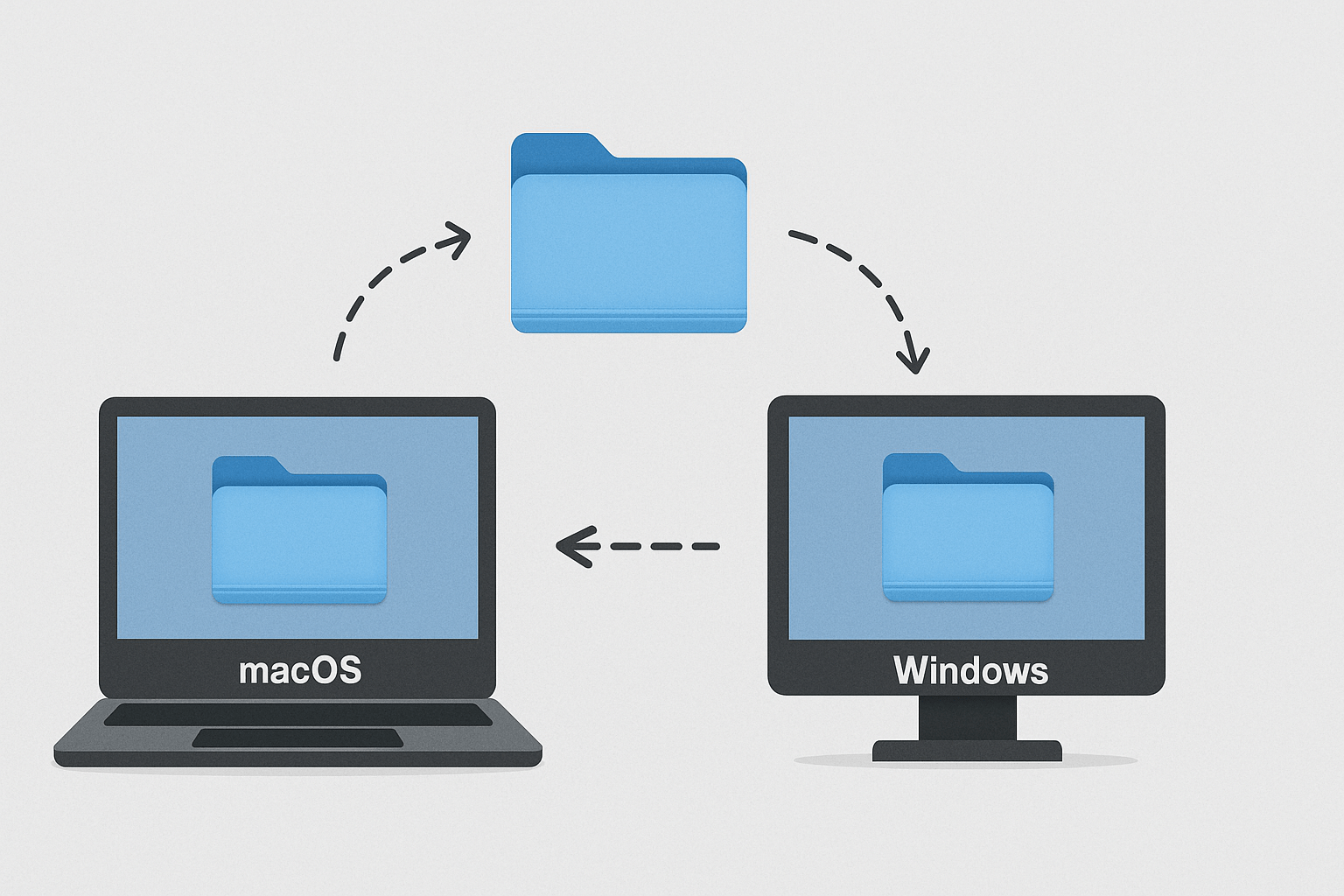
Did it work? Check that you have a shell on your home machine. For a separate file-sharing task, see how to share Mac folders with your Linux machine.
Tailscale Ubuntu names with MagicDNS
Tailscale Ubuntu access gets easier to type with MagicDNS, which gives your devices names. You can use these names instead of addresses when you reach your home computer. It adds these names automatically, like name tags that help you find the right device. This feature comes on by default for groups created on or after October 20, 2022. If your group is older, check whether MagicDNS is on before you try the name.
Back at the café, you could use your home machine’s name instead of its address. For example, a machine called homeserver can use that short name after @. Keep your account name before that mark, because you still need to identify your account. The name changes what you type, but you still reach the same machine through your group.
You can also use the full form, machine-name.tailnet-name.ts.net, with your device and group names. The sample shows where those names go, so do not copy it unchanged.
First, test the address, then try the name while keeping the same account name. This way, you change just one part and can see what you are testing.
Did it work? Check that the short name reaches the same home computer. Then save its full name with your notes before you review the rules for shell access.
Let your sign-in manage shell access

Tailscale Ubuntu users can choose Tailscale SSH, which manages who signs in and who has permission to connect. The secure shell guide explains this feature, which means the connecting device needs no SSH keys. These keys are digital proof of access, much like house keys show you can open a door.
However, the group’s policy file, which holds its access rules, still decides who may connect. Joining the group does not mean every person may open every device’s shell. Check the rules for that device and your account together, because both shape this test.
This feature needs v1.24 or later, so check that before you turn it on. Its host side runs on Linux and the open source macOS variant. On the home machine, run the tool’s set --ssh subcommand with sudo to enable it. The setting belongs on the machine you want to reach, which is your home computer.
An unchanged group lets users reach their own devices in check mode, its access-check setting. If you changed the policy, read those rules before you test your connection.
Did it work? Try reaching your own machine under the rules that apply to it. Once that works, check how long the device’s access key lasts. Do this before relying on that shell when you are away from home.
Choose how your access key expires

Tailscale Ubuntu access can stop because of key expiry, when a device’s access key stops working. Think of it as a pass with an end date, rather than one that lasts forever. The key expiry guide says new groups use a period of 180 days. The 180 days describe new groups, so read your own device’s setting in the console.
When that key expires, connections to and from the device stop working. So check this setting before you count on reaching your file from the café.
For your home machine, open the console’s Machines page and find its device menu. Choose Disable Key Expiry if you want to switch expiry off for that device. Read the name first, because the choice should apply to the machine you mean.
You can also keep the set life, so make the choice on purpose. A working shell shows that you can connect now, but it does not show that expiry is off. Keep that device’s name beside your expiry note, so you know which setting you checked.
Did it work? Read the device’s setting in the console and note what you chose. Then you have something clear to check if access stops later. With that choice recorded, you can move on to the optional traffic setting.
Send internet traffic through home

Your Tailscale Ubuntu machine can be an exit node, which sends another device’s internet traffic through it. Think of home as a post office through which all that device’s internet traffic passes. But you do not need this feature just to reach your file. Your shell test comes first because this next step is optional.
First, follow the exact lines in the forwarding guide to let the machine pass traffic onward. Those lines set forwarding for both address types and apply the settings file. Next, run set --advertise-exit-node as root, then repeat the earlier up command.
In the admin console, open Machines and the device’s menu, then choose Edit exit node. Select Use as exit node, unless an autoApprovers rule handles approval for your group. Finish the home setup first, then make the selection on the device you take out.
On the other device, run the root-level set step with --exit-node=<host-address>, using your home machine’s address. Add --exit-node-allow-lan-access=true if you also want to keep access to your local network. To stop, use the same step with an empty --exit-node= value. Keep the stop step in your notes, so you can switch this choice off later.
Did it work? Check approval at home and the selection on your other device, because both matter.
Frequently asked questions
A subnet router shares access to a LAN, which means your local network. Reaching one machine is like opening one room, while this shares access beyond that room. An exit node has a different job, because it sends a device’s internet traffic through the chosen machine. So choose the feature that fits what you want to do.
Run apt-get remove tailscale as root on the home machine to remove the software. Then remove that device from the console’s Machines page as a separate step. Removing the local software and removing the listed device are two tasks. Check the device name before removing its entry so you choose the machine you intend.
The setup uses the same sign-in steps on a machine without a screen. Its terminal prints a browser link, which you can open on another device. First, finish that sign-in, then check the home machine’s address as shown above. You can therefore follow the same process without using a screen on the home machine itself.
The linked release page lists versions back to 16.04 LTS, named Xenial. Choose your release’s entry, because another release uses different source paths. Also, check the release name in both download lines before following the listed steps. Once setup finishes, use the same browser sign-in and address checks described above.
Keep your Tailscale Ubuntu access ready

Return to that café scene, where your file still sits on the computer at home. Your Tailscale Ubuntu setup now gives you clear steps to reach that machine. Like checking your house keys before leaving, test the connection before you rely on it.
Start with the address and your account name, then check that the shell opens at home. Check that both devices appear in your group before you try the saved address again. Once that works, try the short name so you have less to type. Keep each test small, because changing one thing makes the result easier to understand. Save the full name beside the short name, so both forms are easy to find.
Your Tailscale Ubuntu choices should fit how you want to use your machine. Review the shell access rules and key expiry, then note the settings you chose. If you send internet traffic through home, also note how to stop it. You do that with an empty --exit-node= value, as shown in the earlier step.
Finally, save the device name and test from your other device while both are at hand. You can explore face login with Howdy when you want another desktop project. For now, make that first connection work so you know how to reach home when you need it.