




























Install Docker on Ubuntu, and that “just run it” app guide starts to make sense. Imagine your old laptop now serves as the home server you want to use. You find a photo app you like, but its guide names a tool you have never used. You pause at the command box because you want to know what will change. Docker’s guide explains how containers bundle an app with all the things it needs. Think of a shipping container that carries the whole load together. The app has its needs packed inside, so it can run the same way elsewhere.

This guide installs Docker Engine, which is the part that runs those containers. It does not use Docker Desktop, so keep that name clear as you read. The Docker daemon is its background service, which keeps working without an open window. You will use the terminal, where you type commands and check what each step did. First, you will clear out old packages, which are bundles of software on your machine. Next, add the official source and run a small test to check the setup. After that, choose how to grant access and check the firewall before your real app. These checks help you see what works before you take the next step. Your goal is to know enough to start that first app with care.
Before you install Docker on Ubuntu

Before you install anything, check that your Ubuntu release has Docker support. The supported list includes 26.10, Resolute 26.04, Noble 24.04, and Jammy 22.04. The last three are LTS releases, which means they have long-term support. This guide follows the 26.04 route, so check that release as you work.
The supported hardware types are x86_64, also called amd64, armhf, arm64, s390x, and ppc64le. These names tell you what kind of chip the machine uses. Each of the listed releases needs a 64-bit system to work. Keep that list in view because an old laptop alone does not tell you its chip type.
Next, remove the old packages that can clash with this setup. This is like clearing an old kitchen drawer before the new set arrives. You want one clear set of tools, not parts from several sets. The command below asks the package manager to remove the listed old packages.
sudo apt remove $(dpkg --get-selections docker.io docker-compose docker-compose-v2 docker-doc docker-buildx podman-docker containerd runc | cut -f1)Its first word asks for admin rights, so use an account that has them. Inside the brackets, the command finds installed names from that list. Then the final part sends just those names to the removal step. If the package manager says none are installed, that is fine. You can move on because there is nothing from that list to remove.
Add the official Docker repository
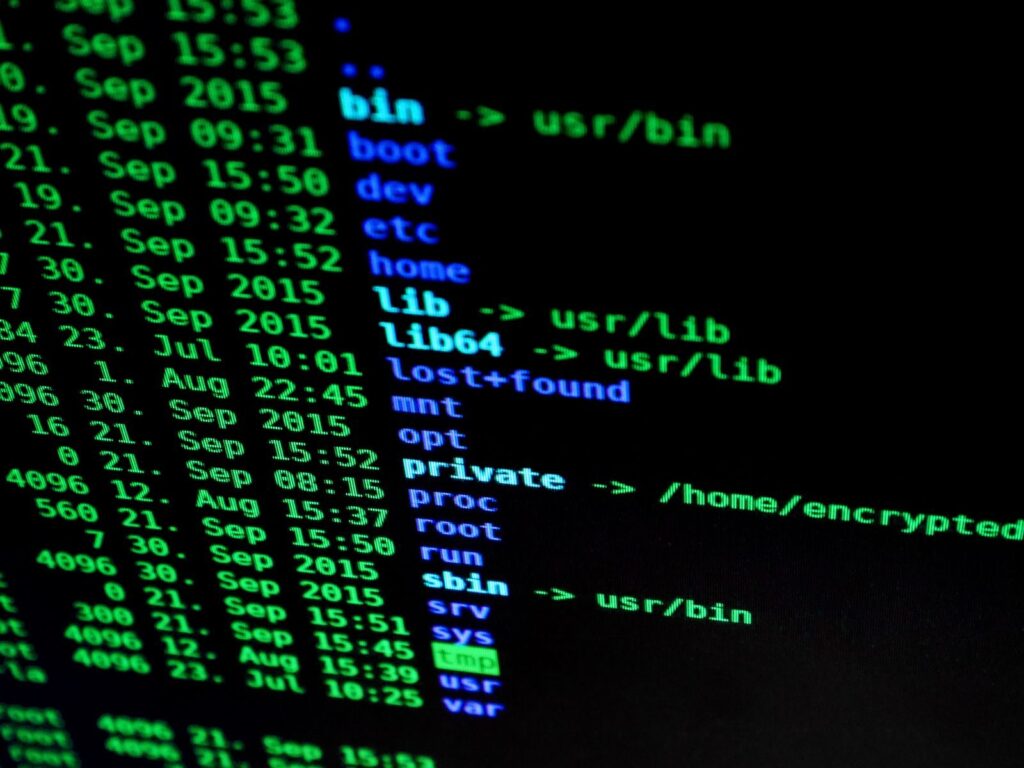
To install Docker on Ubuntu from its own source, add the official Docker repository. A repository is a shop where you get your software packages. Think of this as telling your phone’s app store to trust one extra, official shop. The GPG key acts as that shop’s seal, a digital proof of origin.
The first update refreshes the list of packages your system knows about. Next, the install line adds tools for safe web access and downloads. The next line makes a directory, or folder, for trusted keys. Then the download saves the seal there, and the last line lets the system read it.
# Add Docker's official GPG key:
sudo apt update
sudo apt install ca-certificates curl
sudo install -m 0755 -d /etc/apt/keyrings
sudo curl -fsSL https://download.docker.com/linux/ubuntu/gpg -o /etc/apt/keyrings/docker.asc
sudo chmod a+r /etc/apt/keyrings/docker.asc

# Add the repository to Apt sources:
sudo tee /etc/apt/sources.list.d/docker.sources <<EOF
Types: deb
URIs: https://download.docker.com/linux/ubuntu
Suites: $(. /etc/os-release && echo "${UBUNTU_CODENAME:-$VERSION_CODENAME}")
Components: stable
Architectures: $(dpkg --print-architecture)
Signed-By: /etc/apt/keyrings/docker.asc
EOF

sudo apt update
The next part writes the shop’s address and settings into a sources file. Its Suites line reads your release name, so it fills in resolute here. This same block also works if you use 24.04 or 22.04. Its hardware line reads your chip type, so you do not need to guess.
Finally, the second update reads the package list with the new shop included. Check that this step ends without an error before you move on. If it reports a problem, pause and read that message first. More commands would leave you unsure which part worked, so check before the install.
Install Docker on Ubuntu and test it

Now you can install Docker on Ubuntu with the package command below. That one line does the main Docker installation work in this tutorial. It adds the engine, its command tools, and the container runner. You also get plugins, which add features for building and grouping apps. Together, these are the packages that Docker lists for this install.
sudo apt install docker-ce docker-ce-cli containerd.io docker-buildx-plugin docker-compose-pluginLet that command finish, then check its result before moving on. An error here means the install needs care before you try an app. You do not need a photo server to test the basic setup. A small test gives you a much clearer answer at this stage.
The next command runs a Docker container, an instance of a packed app. It downloads a Docker image, the package used to make that instance. This test image prints a greeting and then exits when done. Think of hello-world as a test call that checks whether the line works.
sudo docker run hello-worldImagine the same laptop now showing “Hello from Docker!” in its terminal. That message lets you check that the test ran as planned. This app exits after its greeting, so do not expect it to stay open. You have reached a useful point because the command now has a clear result.
Choose account access and startup settings

After you install it, Docker access on your Ubuntu server needs a clear choice. The default group has no users, so each command needs admin rights to work. A group is a list of accounts that all share the same access. Adding your account lets you use the tool without the extra word at the start.
However, this access gives your account full control, so think through that choice. The post-install guide warns that each group member gains root-level rights on the machine. Root is the Linux account with full control over the whole system. The group is like giving someone the master key to the building. So choose who you trust with that key before you add an account.
sudo groupadd docker
sudo usermod -aG docker $USER
newgrp docker
The first line creates the group if needed, though it may exist already. Next, add your current user to the docker group with the second line. Its append option keeps your other group memberships when you make this change. The last line applies the new group in the shell you are using. You can also log out and back in to make that change take effect.
Next, choose whether the services should start when the machine turns on. To start Docker at boot, enable docker.service and containerd.service with systemctl, the service control tool. This choice differs from account access, so check both before your next app test.
Run your first real container

Imagine returning to your laptop after the greeting, ready for an app that stays running. Start with the web server below, which serves a page to your browser. This web server is called nginx, and its image comes from Docker Hub. Docker Hub is a source of public images, so you need not build this one yourself.
docker run -d -p 8080:80 --name web nginxThe docker run part creates the container and starts it for you. Its -d option runs it in the background, so your terminal stays free. The -p part links port 8080 on your machine to port 80 inside. A port is a numbered point where a connection can be made. Finally, –name gives this instance the name web for you to use.
Open the local test page on that machine to view the web server. You can also use the server’s address on port 8080 to reach it. Look for “Welcome to nginx!” to see the web server’s page. Like the earlier test call, this checks whether the line works. This time, you use a browser, so you can view the result there. Next, list the running containers and stop this one when you finish.
docker ps
docker stop web
The first docker command shows what is running on your machine. Its second command stops the instance named web when you are done. These commands assume you chose group access in the step above. If you kept admin-only access, use that route for these commands instead. When you plan your photo app, our guide to sharing files with your server offers a related next read.
Rootless mode and the firewall surprise

Before you install another Docker app, review your Ubuntu access and firewall choices. Rootless mode runs the background service and containers as a non-root user. That means it uses a normal account in place of the root user. It is like a key to one flat instead of the building’s master key.
This mode needs the uidmap package, a tool that maps user identities. Run the setup script below while logged in as your normal account. If it is missing, use apt-get to install docker-ce-rootless-extras before you go on. The next line starts the service that runs for your user account. Here, –user tells the service tool to act for your account.
dockerd-rootless-setuptool.sh install
systemctl --user start docker.service
Also, check the firewall before you expose any of your app’s ports. A firewall sets rules for the network traffic that can pass through. The install guide warns that exposed container ports bypass rules from ufw or firewalld. Those are two firewall tools whose rules you might expect to apply. This is like a side door that the guard at the front gate does not watch.
So do not assume those rules cover the port from the web example. Review that port’s exposure as part of choosing your app’s settings. Imagine your laptop holding the photo app you wanted at the start. Its access needs as much care as the page you got to work. Keep that in mind before you leave a real service running for use.
Frequently asked questions
The convenience script offers quick setup with no steps that need your input. However, its maker recommends it only for testing and development, rather than production use. That means tests and app work, rather than a service you rely on. For this guide, follow the package source steps so you can check each change.
No, this guide uses the engine that runs containers on your machine. That means you do not need the separate desktop product for these steps. Keep each of your checks tied to the commands shown here. The greeting checks the basic setup, while the web page checks the sample app. Neither step asks you to open a desktop interface to use it.
The access group starts with no users, so your account needs admin rights. Those rights let your account use the system service as shown above. Group membership changes that need, but it also gives you root-level power. Choose it with the warning about the master key in mind. Rootless mode offers the other route, with the service under your normal account.
The block below removes the packages, stored data, source file, and key. Like emptying that kitchen drawer, it clears what the setup left behind. However, the /var/lib line permanently deletes all images, containers, and volumes. Those volumes hold saved app data, so that data will be gone too. Read this warning before you choose to run the whole block.
sudo apt purge docker-ce docker-ce-cli containerd.io docker-buildx-plugin docker-compose-plugin docker-ce-rootless-extras
sudo rm -rf /var/lib/docker /var/lib/containerd
sudo rm /etc/apt/sources.list.d/docker.sources /etc/apt/keyrings/docker.asc
Ready to install Docker on Ubuntu with purpose

You can install Docker on Ubuntu with a clear check at each stage. The package source gives you a clear path through the setup. Its test greeting then gives you a result you can see. The web example turns that result into a page you can open. Each step answers its own question about which parts now work.
Imagine your old laptop again, now showing its first real app. The phrase “just run it” no longer hides each step from view. You know that the shipping container carries the app with what it needs. You also know that account rights and exposed ports still need care on the host.
When that photo app asks for Docker on Ubuntu, carry these checks forward. Read its commands, review its ports, and choose how your account should gain access. Keep the small test as your starting point because its result was clear. It showed what worked before you brought the larger app into the picture.
Finally, use the app guide to take your next step with purpose. Stop the sample web server when you are done with it. Then return to the app you wanted to use from the start. If you want another project afterward, explore another useful system tweak as your next read. For now, let that first working page mark a start you understand.