



























• Terms and Conditions
  • Contact Us
  • About Us
Monday, November 2, 2026
  • Login
ITZNews
Advertisement
  • Home
  • News
    • All
    • Business
    • Politics
    • Science
    • World
    OpenAI London Salary: The £2.3m Average Explained

    OpenAI London Salary: The £2.3m Average Explained

    Patch Tuesday October 2026: Microsoft Updates

    Patch Tuesday October 2026: Microsoft Updates

    Unlocking the Impact of Secrets of Garlic on Heart Health

    Unlocking the Impact of Secrets of Garlic on Heart Health

    Hearing Loss and Cognitive Decline In Older Adults

    Hearing Loss and Cognitive Decline In Older Adults

    Intermittent Fasting: Benefits, Methods, and Safety

    Intermittent Fasting: Benefits, Methods, and Safety

    Israel-Hamas Conflict: Origins, Impacts, and the Path Forward

    Israel-Hamas Conflict: Origins, Impacts, and the Path Forward

    Trending Tags

    • Sports News
    • Best Beaches in the World
    • Millennials
    • PlayStation 6 release date
    • Creative Challenges
  • Tech
    • All
    • Apps
    • Gadget
    • Mobile
    • Startup
    SSH Key Setup: Log In Without a Password

    SSH Key Setup: Log In Without a Password

    How to Install Docker on Ubuntu 26.04

    How to Install Docker on Ubuntu 26.04

    Tailscale Ubuntu Setup Step by Step

    Tailscale Ubuntu Setup Step by Step

    How to Share Mac Folders with Ubuntu

    How to Share Mac Folders with Ubuntu

    How to Share Mac Folders with Windows: A Complete Guide

    How to Share Mac Folders with Windows: A Complete Guide

    BFF pattern: Securing Your App with Backend Oriented-Authentication

    BFF pattern: Securing Your App with Backend Oriented-Authentication

    Facial Recognition with Howdy: Unlock Your Ubuntu 24.0X

    Facial Recognition with Howdy: Unlock Your Ubuntu 24.0X

    Web 3.0: Dissecting The Hype From Reality

    Web 3.0: Dissecting The Hype From Reality

    Trending Tags

    • Technology Impact
    • Future of VR
    • Virtual Reality
    • digital transactions
    • Technology Advancements
    • digital advertising
  • Entertainment
    • All
    • Gaming
    • Movie
    • Music
    • Sports
    Rugby League World Cup 2026: Tonga Stun England

    Rugby League World Cup 2026: Tonga Stun England

    Revolutionizing Rhythms Through AI and Web 3.0

    Revolutionizing Rhythms Through AI and Web 3.0

    When Does The PS6 Come Out? Beyond The Powerful PS5

    When Does The PS6 Come Out? Beyond The Powerful PS5

    Top 5 Michelin Star Restaurants in Europe, a Taste of Elegance

    Top 5 Michelin Star Restaurants in Europe, a Taste of Elegance

    5 Best Beaches in the World for 2023: A Journey to Stunning Cliffs

    5 Best Beaches in the World for 2023: A Journey to Stunning Cliffs

    The Top 5 Smartwatches of 2023: A Comprehensive Review

    The Top 5 Smartwatches of 2023: A Comprehensive Review

  • Lifestyle
    • All
    • Fashion
    • Food
    • Health
    • Travel
    Walking After Eating: How It Lowers Blood Sugar

    Walking After Eating: How It Lowers Blood Sugar

    How to Reverse Insulin Resistance: The Hidden Belly Fat Connection

    How to Reverse Insulin Resistance: The Hidden Belly Fat Connection

    The Art of Ambition: Harnessing Power with Wisdom

    The Art of Ambition: Harnessing Power with Wisdom

    Chia Seeds: Unveiling the Superfood’s Nutritional Powerhouse

    Chia Seeds: Unveiling the Superfood’s Nutritional Powerhouse

    Unlocking the Impact of Secrets of Garlic on Heart Health

    Unlocking the Impact of Secrets of Garlic on Heart Health

    Hearing Loss and Cognitive Decline In Older Adults

    Hearing Loss and Cognitive Decline In Older Adults

    Trending Tags

    • Emotional Struggles
    • Mental Health
    • mental fitness
    • Best Beaches in the World
    • smartphones
    • Smartwatch for Fitness Tracking
    • artificial intelligence
  • Review
    How DeepSeek R1 Outperformed OpenAI Using 5% of the Resources

    How DeepSeek R1 Outperformed OpenAI Using 5% of the Resources

    Blood Sugar Control: Effective Ways to Manage Diabetes

    Blood Sugar Control: Effective Ways to Manage Diabetes

    The Ultimate Guide to Boosting Your Oral Health

    The Ultimate Guide to Boosting Your Oral Health

    When Does The PS6 Come Out? Beyond The Powerful PS5

    When Does The PS6 Come Out? Beyond The Powerful PS5

    Top 5 Michelin Star Restaurants in Europe, a Taste of Elegance

    Top 5 Michelin Star Restaurants in Europe, a Taste of Elegance

    The Top 5 Smartwatches of 2023: A Comprehensive Review

    The Top 5 Smartwatches of 2023: A Comprehensive Review

No Result
View All Result
  • Home
  • News
    • All
    • Business
    • Politics
    • Science
    • World
    OpenAI London Salary: The £2.3m Average Explained

    OpenAI London Salary: The £2.3m Average Explained

    Patch Tuesday October 2026: Microsoft Updates

    Patch Tuesday October 2026: Microsoft Updates

    Unlocking the Impact of Secrets of Garlic on Heart Health

    Unlocking the Impact of Secrets of Garlic on Heart Health

    Hearing Loss and Cognitive Decline In Older Adults

    Hearing Loss and Cognitive Decline In Older Adults

    Intermittent Fasting: Benefits, Methods, and Safety

    Intermittent Fasting: Benefits, Methods, and Safety

    Israel-Hamas Conflict: Origins, Impacts, and the Path Forward

    Israel-Hamas Conflict: Origins, Impacts, and the Path Forward

    Trending Tags

    • Sports News
    • Best Beaches in the World
    • Millennials
    • PlayStation 6 release date
    • Creative Challenges
  • Tech
    • All
    • Apps
    • Gadget
    • Mobile
    • Startup
    SSH Key Setup: Log In Without a Password

    SSH Key Setup: Log In Without a Password

    How to Install Docker on Ubuntu 26.04

    How to Install Docker on Ubuntu 26.04

    Tailscale Ubuntu Setup Step by Step

    Tailscale Ubuntu Setup Step by Step

    How to Share Mac Folders with Ubuntu

    How to Share Mac Folders with Ubuntu

    How to Share Mac Folders with Windows: A Complete Guide

    How to Share Mac Folders with Windows: A Complete Guide

    BFF pattern: Securing Your App with Backend Oriented-Authentication

    BFF pattern: Securing Your App with Backend Oriented-Authentication

    Facial Recognition with Howdy: Unlock Your Ubuntu 24.0X

    Facial Recognition with Howdy: Unlock Your Ubuntu 24.0X

    Web 3.0: Dissecting The Hype From Reality

    Web 3.0: Dissecting The Hype From Reality

    Trending Tags

    • Technology Impact
    • Future of VR
    • Virtual Reality
    • digital transactions
    • Technology Advancements
    • digital advertising
  • Entertainment
    • All
    • Gaming
    • Movie
    • Music
    • Sports
    Rugby League World Cup 2026: Tonga Stun England

    Rugby League World Cup 2026: Tonga Stun England

    Revolutionizing Rhythms Through AI and Web 3.0

    Revolutionizing Rhythms Through AI and Web 3.0

    When Does The PS6 Come Out? Beyond The Powerful PS5

    When Does The PS6 Come Out? Beyond The Powerful PS5

    Top 5 Michelin Star Restaurants in Europe, a Taste of Elegance

    Top 5 Michelin Star Restaurants in Europe, a Taste of Elegance

    5 Best Beaches in the World for 2023: A Journey to Stunning Cliffs

    5 Best Beaches in the World for 2023: A Journey to Stunning Cliffs

    The Top 5 Smartwatches of 2023: A Comprehensive Review

    The Top 5 Smartwatches of 2023: A Comprehensive Review

  • Lifestyle
    • All
    • Fashion
    • Food
    • Health
    • Travel
    Walking After Eating: How It Lowers Blood Sugar

    Walking After Eating: How It Lowers Blood Sugar

    How to Reverse Insulin Resistance: The Hidden Belly Fat Connection

    How to Reverse Insulin Resistance: The Hidden Belly Fat Connection

    The Art of Ambition: Harnessing Power with Wisdom

    The Art of Ambition: Harnessing Power with Wisdom

    Chia Seeds: Unveiling the Superfood’s Nutritional Powerhouse

    Chia Seeds: Unveiling the Superfood’s Nutritional Powerhouse

    Unlocking the Impact of Secrets of Garlic on Heart Health

    Unlocking the Impact of Secrets of Garlic on Heart Health

    Hearing Loss and Cognitive Decline In Older Adults

    Hearing Loss and Cognitive Decline In Older Adults

    Trending Tags

    • Emotional Struggles
    • Mental Health
    • mental fitness
    • Best Beaches in the World
    • smartphones
    • Smartwatch for Fitness Tracking
    • artificial intelligence
  • Review
    How DeepSeek R1 Outperformed OpenAI Using 5% of the Resources

    How DeepSeek R1 Outperformed OpenAI Using 5% of the Resources

    Blood Sugar Control: Effective Ways to Manage Diabetes

    Blood Sugar Control: Effective Ways to Manage Diabetes

    The Ultimate Guide to Boosting Your Oral Health

    The Ultimate Guide to Boosting Your Oral Health

    When Does The PS6 Come Out? Beyond The Powerful PS5

    When Does The PS6 Come Out? Beyond The Powerful PS5

    Top 5 Michelin Star Restaurants in Europe, a Taste of Elegance

    Top 5 Michelin Star Restaurants in Europe, a Taste of Elegance

    The Top 5 Smartwatches of 2023: A Comprehensive Review

    The Top 5 Smartwatches of 2023: A Comprehensive Review

No Result
View All Result
ITZNews
No Result
View All Result
Home Tech

SSH Key Setup: Log In Without a Password

Admin by Admin
November 2, 2026
in Tech
0
SSH Key Setup: Log In Without a Password

Start your SSH key setup with safety in mind. Photo: Diana ✨ / Pexels

0
SHARES
0
VIEWS
Share on FacebookShare on Twitter

SSH key setup lets you log in with a key instead of a password. SSH means Secure Shell, a way to reach another computer over a network. Imagine typing your long password for the tenth time today on your Mac. Your small Ubuntu home server waits, but you wish this part felt less like work. You want a simpler way in, and you want to know who holds the key. An SSH key pair gives you two files that work together. One is a public key, which you can share with your server.

The other is a private key, which must stay secret on your laptop. OpenSSH, the free software that makes this work, comes with Mac and Linux systems. So you can start with the tools already on your laptop. We will make the files, protect the secret one, and teach the SSH server to trust it. Then we will check that the new way in works before changing the old one. That order matters because a wrong setting could leave you stuck outside. You do not need to learn each hidden part to follow the steps. You do need to know which file you can share and which must stay yours. By the end, you will have checked both.

Contents

Toggle
  • Build your SSH key setup with a protected key
  • Let your laptop remember the unlocked key
  • Copy and test your SSH key setup
  • Turn off password login with a way back in
  • Use the same key on GitHub and Git
  • Leave your SSH key setup ready for the next login

Build your SSH key setup with a protected key

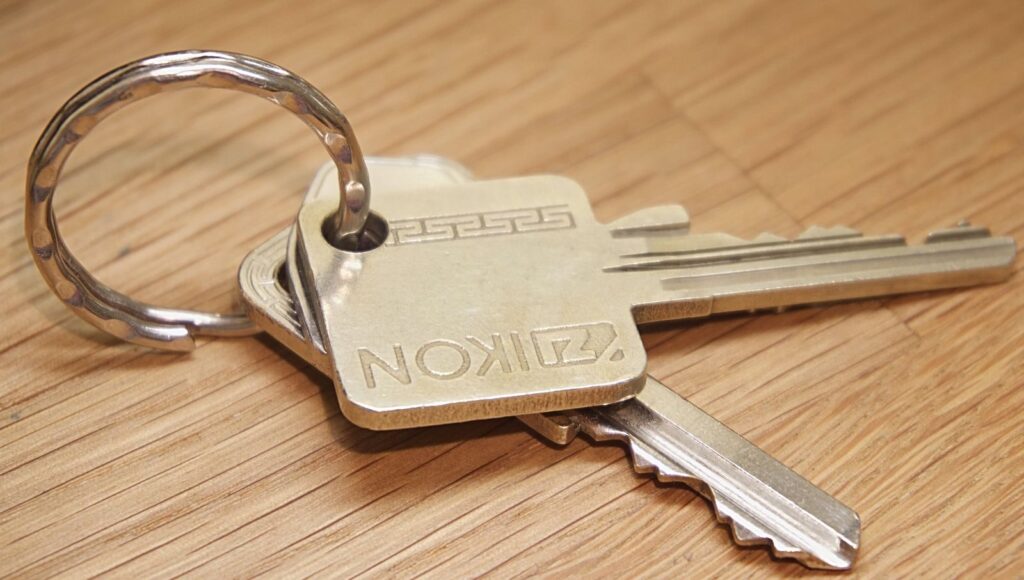
Metal house keys on a wooden surface, a key theme for SSH key setup
Keep your private key safe as you would your house keys. Photo: Ingo Joseph / Pexels

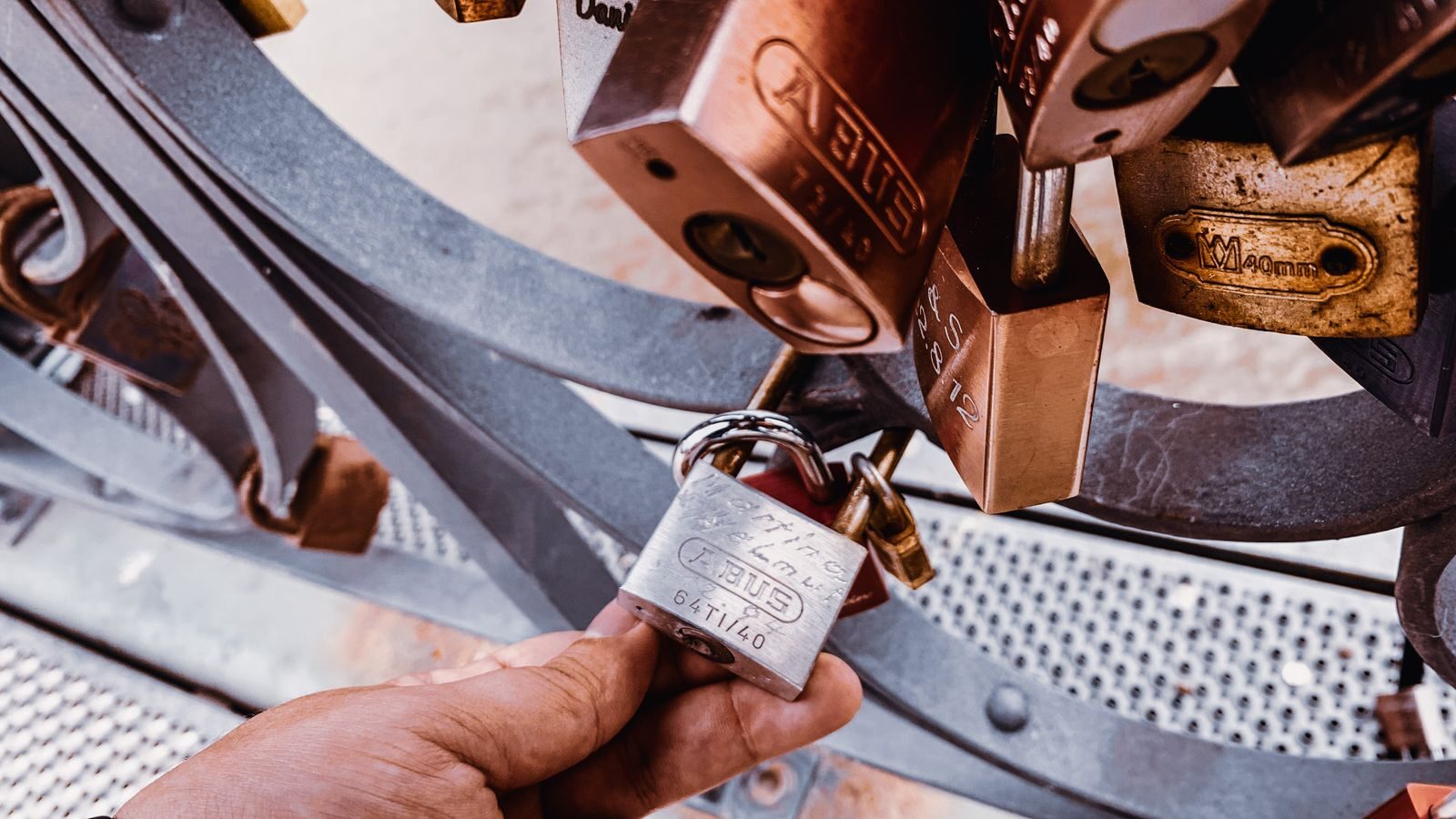
A public key works like a padlock you can hand to a server. Your secret half is the only key that opens it, so it never leaves your laptop. This SSH key setup uses that pair to prove you should get in. The name for this is public key authentication: the server checks your key to authenticate, or confirm, you.

First, generate an SSH key in your terminal, the app where you type commands. Use this command to generate a new SSH key; -C adds a comment, or label, as the key guide explains.

ssh-keygen -t ed25519 -C "[email protected]"

Choose an Ed25519 key, the default kind in current tools. A key type means the kind it makes. An RSA key is an older kind for very old servers. You need not choose a key size here.

Next, accept the default place to save the key when you see this prompt.

Enter a file in which to save the key (/home/YOU/.ssh/id_ed25519): [Press enter]
Enter passphrase (empty for no passphrase): [Type a passphrase]
Enter same passphrase again: [Type passphrase again]

Your home directory is your own user folder. On a Mac, the path starts with /Users/YOU. Your keys are stored in that folder as id_ed25519 and id_ed25519.pub. The first is your SSH private key file; the .pub file holds the shareable half.

Set a passphrase, a secret phrase that protects the key file. It acts like a PIN on your key.

Windows 10 and 11 also include the SSH client, the tool that starts a connection. The same key tool works in PowerShell, its command app.

Let your laptop remember the unlocked key

Keys hanging from a key ring, a simple image for SSH key setup
Let your laptop remember your unlocked key. Photo: himanshu marathe / Pexels

A passphrase protects your key, but typing it for each login would soon get tiring. So ssh-agent acts like a key ring that holds your unlocked key for the day. You type the phrase once, and the helper holds the key for use. This SSH key setup can then spare you a fresh prompt for each login.

First, start the helper on your laptop with this command.

eval "$(ssh-agent -s)"

Next, add your key with the command for your system. On Linux, use this line.

ssh-add ~/.ssh/id_ed25519

On macOS, the Mac system, use this version, which uses Keychain, the Mac tool for holding secrets.

ssh-add --apple-use-keychain ~/.ssh/id_ed25519

For a Mac, also put this block in ~/.ssh/config, the file for settings. Keep your old settings as you add these lines.

Host *
  AddKeysToAgent yes
  UseKeychain yes
  IdentityFile ~/.ssh/id_ed25519

Host * makes the block apply to every server. AddKeysToAgent tells the helper to hold the key when you use it. UseKeychain lets the Mac use its secret store, while IdentityFile points to your key file. So these lines tell your laptop which key to use and how to remember it.

If you chose to go without a passphrase, leave out the UseKeychain line. That leaves an unencrypted private key, which has no phrase to unlock it. You can still go back and add that protection. Once the helper has your key, the next step happens at the server.

Copy and test your SSH key setup

A checklist on a clipboard with a pen
Copy your public key, then check that it works. Photo: RDNE Stock project / Pexels

Your server needs OpenSSH server software to take the login. On Ubuntu, install it with this command if it is not there yet.

sudo apt install openssh-server

Next, copy the public key from your laptop with this command. Replace username with your server account name and server_ip with its address.

ssh-copy-id username@server_ip

The ssh-copy-id tool adds your SSH public key to authorized_keys on the server. That file is the guest list at the door, so copy the key there. You type the server password for this step, while the secret half stays home.

Only your user should be able to write that guest list. On the server, use this command to fix those write rights.

chmod go-w ~/.ssh/authorized_keys

Now test your SSH key setup from a fresh terminal. Use this SSH command to start an SSH connection, a link to your server.

ssh username@server_ip

It should ask for the key passphrase, or ask for nothing if the helper has it. It should not ask for the server password. Imagine the same home server owner reaching the command screen without typing that long secret again. That is the check you want before you change how the door works.

If the old prompt comes back, pause here and check the steps. Keep your current way in until the new one works. Later, you can explore how to reach your server from anywhere with Tailscale.

Turn off password login with a way back in

A hand pressing a keypad beside a door
Keep a way back in when you turn off password login. Photo: Andrei Kotovikov / Pexels

Keep your current server session open before you change any settings. A session means your current login, so leave that terminal alone. Next, open a second terminal for your test. Think of this change as taking the keypad off the front door once everyone has a key.

To disable password login, use the block below on the remote server, the computer you reach over the network. Run each line in order, but stop if the check reports an error. The last line restarts the service, which takes logins.

echo "PasswordAuthentication no" | sudo tee /etc/ssh/sshd_config.d/00-no-passwords.conf
sudo sshd -t
sudo systemctl restart ssh.service

Ubuntu reads extra settings from /etc/ssh/sshd_config.d/. For most settings, it uses the first value it finds. So the file name starts with 00 to put it early in that order. The setting PasswordAuthentication controls whether the server allows a password, and its default is yes.

The middle command checks those settings for mistakes before you restart. However, a check alone does not prove that your new login will work. Ubuntu warns that a mistake can lock you out when this is your only way in.

So test again in the second terminal while the first stays open. Your SSH key setup must still let you in after the restart. Close the old session only once that new login works. With that check done, you can try another place that accepts your key.

Use the same key on GitHub and Git

A modern glass building entrance
Use your key to log in to GitHub and work with Git. Photo: Mathias Reding / Pexels

The same key can open a second building: your account on the code hosting site. Git, the tool that tracks code changes, can use that key there too. So you can use SSH keys for this account as well as your home server. The site’s connection guide covers this link.

First, open the site’s Settings, then SSH and GPG keys. GPG labels another key system on that page. Click New SSH key, then paste the public half into the form. On a Mac, this command puts that key to your clipboard, ready to paste.

pbcopy < ~/.ssh/id_ed25519.pub

Share only the file with .pub at the end. You keep the private key on your laptop, because the account needs only the shareable half. Then use this test command to check the link.

ssh -T [email protected]

The site should greet you with your account name. So the test has reached the account tied to your key. Your SSH key setup now has another place to work, with the same rule about which half you share.

You can also choose separate keys rather than reuse one. Either way, key management means keeping track of where you have added each key. That list matters if you ever need to replace it. Once these logins work, you may want to share folders between a Mac and Ubuntu. First, let’s clear up some common questions.

Frequently asked questions

Should I protect my key with a secret phrase?

Yes, because the phrase adds protection to the key on your laptop. Think of it as a PIN on your key, rather than the key itself. The helper can remember the unlocked key, so you do not have to type the phrase every time you use it. Keep the secret file to yourself as well.

Which SSH key type is best for this setup, Ed25519 or RSA?

Choose Ed25519, because it is the default in current OpenSSH. The command in this guide picks it for you, so you can follow the steps as shown. The older kind is for very old servers that need it. You can use the modern choice shown here.

Can I add a key to more than one server?

Yes, you can add an SSH key to more than one server or account. Each place needs the public half, while the secret half stays on your laptop. This is how you set up SSH access in each place. Keep a list of those places, because you will need it if the key leaks.

What should I do if my private key leaks?

Make a fresh pair, then remove the old public key from every server and account. Never share or upload the secret file, even when you need help with a login. A new pair gives you a new secret half to protect. So revisit each place on your list, rather than fixing just one account.

Leave your SSH key setup ready for the next login

A man working comfortably on a laptop at home
Leave your key setup ready for your next login. Photo: Arina Krasnikova / Pexels

Imagine returning to that same laptop when you next need your home server. You no longer face the long secret that you typed over and over. Instead, your key gets you in, and your helper can hold it once unlocked. You know which file stays home, so sharing the other half feels clear.

Your SSH key setup now rests on steps you have checked for yourself. You made the pair, gave the server its share, and tried a fresh login. Then you kept a way back in while you changed the server’s settings. That last check matters because a working key must come before a closed door.

Turning off password login is like taking away the door’s keypad once your key works. So keep that order in mind if you set up another server later. Test the new way in, leave the old session open, and check once more after the change. You can use the same calm steps without guessing which part went wrong.

Now put your list of key locations somewhere you can find it. Keep the secret half on your laptop, and never upload it for help. Your SSH key setup gives you a clear way to log in and a plan for replacing a leaked key. With this task done, another Ubuntu tweak can wait until you want it.


Tags: home serverLinuxsecuritysshssh key setupubuntu
Previous Post

How to Install Docker on Ubuntu 26.04

Stay Connected test

  • 24k Followers
  • 99 Subscribers
  • Trending
  • Comments
  • Latest
Meet the Immortal Jellyfish: a Lifetime Creature

Meet the Immortal Jellyfish: a Lifetime Creature

August 30, 2023
Quality Writing Process: Student Ultimate Guide

Quality Writing Process: Student Ultimate Guide

September 3, 2023
The War in Ukraine:  What You Need to Know in  2022

The War in Ukraine: What You Need to Know in 2022

August 17, 2023
5 Ways Your Dog Can Tell You are Getting Sick

5 Ways Your Dog Can Tell You are Getting Sick

August 30, 2023
Arsenal news: Mikel Arteta slammed for Man Utd decision as Nuno Tavares vents frustration

Arsenal news: Mikel Arteta slammed for Man Utd decision as Nuno Tavares vents frustration

29
African Buffaloes: How They protect Themselves from Lions

African Buffaloes: How They protect Themselves from Lions

18
Top 10 signings of the 2022 summer transfer window: Players; stats, transfer fee

Top 10 signings of the 2022 summer transfer window: Players; stats, transfer fee

5
Meet the Immortal Jellyfish: a Lifetime Creature

Meet the Immortal Jellyfish: a Lifetime Creature

2
SSH Key Setup: Log In Without a Password

SSH Key Setup: Log In Without a Password

November 2, 2026
How to Install Docker on Ubuntu 26.04

How to Install Docker on Ubuntu 26.04

October 30, 2026
Walking After Eating: How It Lowers Blood Sugar

Walking After Eating: How It Lowers Blood Sugar

October 28, 2026
Tailscale Ubuntu Setup Step by Step

Tailscale Ubuntu Setup Step by Step

October 26, 2026

Recent News

SSH Key Setup: Log In Without a Password

SSH Key Setup: Log In Without a Password

November 2, 2026
How to Install Docker on Ubuntu 26.04

How to Install Docker on Ubuntu 26.04

October 30, 2026
Walking After Eating: How It Lowers Blood Sugar

Walking After Eating: How It Lowers Blood Sugar

October 28, 2026
Tailscale Ubuntu Setup Step by Step

Tailscale Ubuntu Setup Step by Step

October 26, 2026
logo_darkmode-

Discover Itznews: your trusted source for timely news, insightful blogs, and compelling magazines. Experience news insights tailored for the curious mind, all at your fingertips.

Follow Us

Browse by Category

  • Apps
  • Business
  • Entertainment
  • Fashion
  • Food
  • Gadget
  • Gaming
  • Health
  • Lifestyle
  • Mobile
  • Movie
  • Music
  • News
  • Politics
  • Relationship
  • Review
  • Science
  • Sports
  • Startup
  • Tech
  • Travel
  • World

Recent News

SSH Key Setup: Log In Without a Password

SSH Key Setup: Log In Without a Password

November 2, 2026
How to Install Docker on Ubuntu 26.04

How to Install Docker on Ubuntu 26.04

October 30, 2026
  • About
  • Advertise
  • Privacy & Policy
  • Contact

© 2023 Itznews - Premium Worldwide News & Magazine by Itznews.

Welcome Back!

Login to your account below

Forgotten Password?

Retrieve your password

Please enter your username or email address to reset your password.

Log In
No Result
View All Result
  • Home
  • Entertainment
  • Lifestyle
  • Relationship
  • Review
  • Tech
  • About Us
  • Contact Us

© 2023 Itznews - Premium Worldwide News & Magazine by Itznews.