














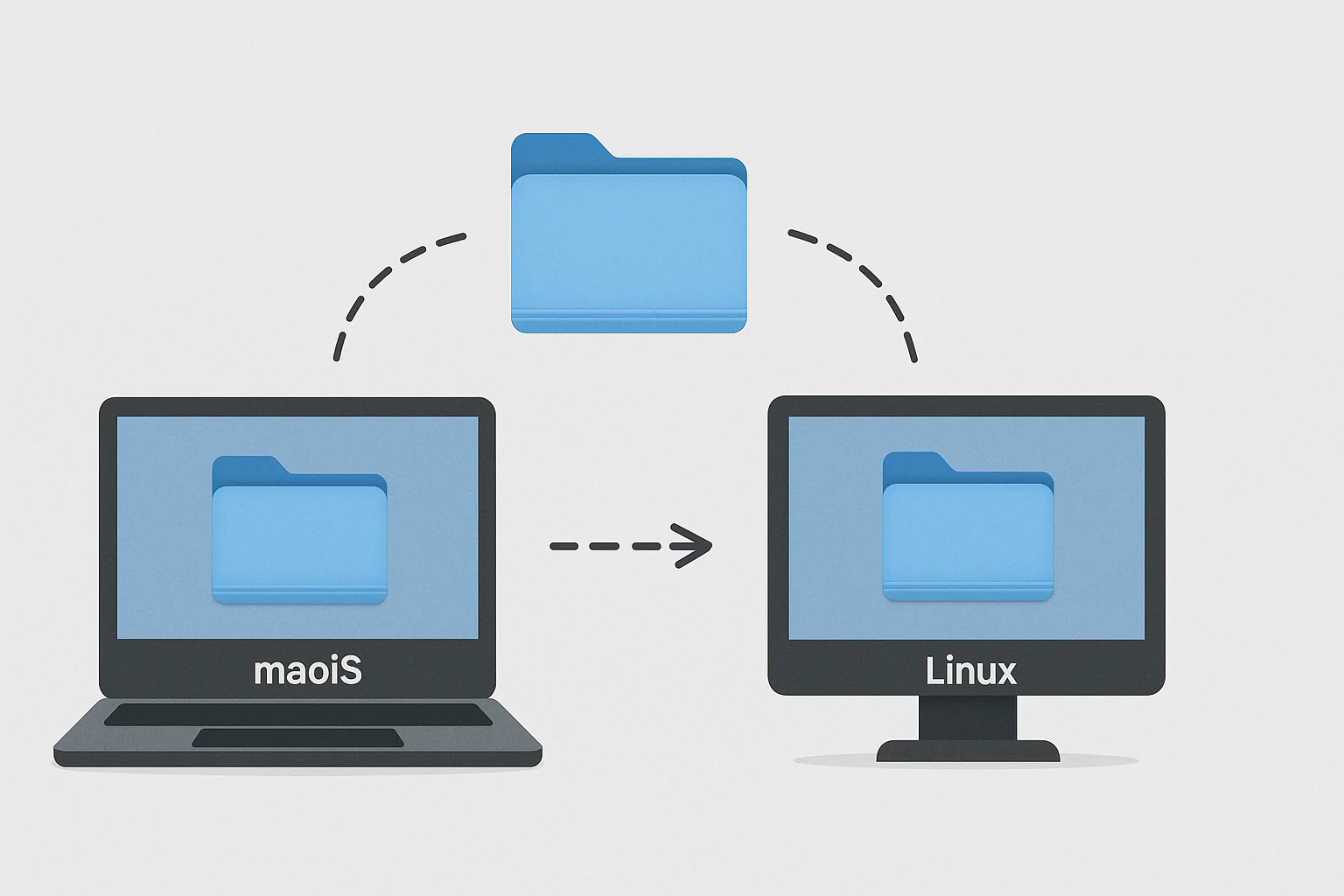


















Imagine your Ubuntu laptop shows “No Wi-Fi Adapter Found” where WiFi should be. You have just finished the setup, and the screen looks clean and bright. But you cannot connect, and there is no cable near your desk. Your phone sits in your pocket while you wonder what went wrong. That message gives you a place to start, but it does not name the cause. So, before you buy a new card or change lots of things, work through the checks below. Each check gives you a clear reason to stop or move on. You can take them one at a time.

First, we will check whether a switch has turned the radio off. Next, we will ask the system to show the card by name. If it sees the card, we can look for the software that helps it work. Because some fixes need a download, we will also cover a way to get online through your phone. Keep the network menu close, since that is where you will check each result. If you followed our guide to installing Ubuntu next to Windows, these checks still give you a calm place to begin. The aim is to find the missing piece, one check at a time.
First check: is the switch off?
First, look for a wireless switch or a function key that controls the radio. Think of a light switch on the wall: if it is off, no bulb will help. A blocked radio needs that switch checked before you spend time changing software. So, start with the controls you can see.
Then open a terminal, the window where you type commands. The rfkill manual explains the tool that lists and controls radio blocks. A soft block comes from software, such as airplane mode. A hard block comes from a physical switch or key, so software cannot clear it.
rfkill list
sudo rfkill unblock wifi
Read the first line’s result before you judge the second line’s effect. The second line tries to enable the radio by clearing a soft block. Its first word asks for admin rights, which means permission to change the system. But it cannot turn a physical switch on for you.
If you see “Hard blocked: yes”, check the switch or function key again. You can also check the BIOS setting, in the computer’s built-in start menu. Then look for nearby connections in the menu. If they appear, stop here; otherwise, move on and check whether the system sees the card itself. That order saves time, because each check rules out one cause.
Does Ubuntu see your WiFi adapter?

Next, ask the system to name the card inside your computer. This is like a roll call: if its name is not called, it is not in the room. For a built-in card, run the following line, then look through the names it prints. You are checking what the computer can see.
lspci -nnk | grep -iA3 netThe lspci manual explains that these options show hardware names, number codes, and the software handling each part. Find “Network controller”, then “Kernel driver in use”. That second line names the software translator that helps the card talk to the operating system, the main software running your computer.
If that second line is missing, the translator is missing too. For a plug-in card, use the next command instead. The lsusb manual describes its list of connected devices. Imagine seeing your card’s name at last: you now have something clear to check, rather than just an error message.
lsusbNext, check NetworkManager, the software that manages connections. Its text tool, nmcli, shows device status and can turn the radio on. Check the menu again after these lines. If it fills with nearby choices, stop; otherwise, keep the card’s name handy for the next step. Write that name down, because every later step builds on it.
nmcli device status
nmcli radio wifi on
Get online first with a cable or your phone

Some of the next fixes need files from the internet, so arrange another way online first. Think of borrowing a neighbour’s phone line to call the repair shop. You are using a working route to get help for the broken one. The temporary link gives you a way to fetch what is missing.
If you have an Ethernet cable, plug it in and check for a wired connection. But if there is no cable nearby, take out the phone from our opening scene. Use its charging cable to connect it to the computer. Then open the phone’s hotspot settings and look for USB tethering.
Tethering means sharing the phone’s internet link with another device. Turn it on, then check for a wired connection on the computer. The system treats this link like a cable connection, so you can use it to fetch the repair files. You do not need the built-in radio working for this route.
Before moving on, check that you can open a web page. If it loads, you have the link needed for the download steps below. Keep the phone attached while you work through them. If you still have no internet link, you can finish the switch and card checks, but the download steps need to wait.
Install the driver your Ubuntu WiFi adapter needs
For your Ubuntu adapter, a WiFi driver acts as a translator between the card and the system. Without one, the card speaks a language nobody understands. So, if the earlier check showed the card but no translator, this is the next place to look. Keep your temporary internet link working while you check.
Search your apps for Additional Drivers, the tool that lists extra software for your hardware. Look at what it offers for the card you found earlier. Because the card’s name now gives you a clear reference, you can compare that name with the offered choice. Follow the tool’s steps to add it.
The official tool guide also gives a text-based route using the same selection logic. The following command asks it to choose the best match for your computer. You can use this route instead of the app, so there is no need to do both methods for the same check.
sudo ubuntu-drivers installSome Broadcom cards need the STA option from the software section called “restricted”. The app usually offers it once you are online. Then reboot and check the connection menu again. If nearby choices appear, stop here; if they do not, move on to the small instructions the card itself needs.
Give the card its small instruction booklet

Your Ubuntu adapter may still lack what it needs to start WiFi, even with a translator. Firmware means the small instructions that the card itself needs. Think of the card’s own instruction booklet, which must be handed over at the start of each day. The translator and that booklet serve different jobs.
So, return to the result you read earlier and check whether it named a driver in use. If it did, but the card still will not work, this step fits that result. You are now checking another missing piece, rather than asking the same tool to make the same choice again.
The linux-firmware listing describes a package, or bundle of files, holding these instructions for Linux. You can ask for a fresh copy with the line below. Here, apt is the tool that adds software, and the reinstall option tells it to add that bundle again. Keep your temporary link available for this step.
sudo apt install --reinstall linux-firmwareOnce the command finishes, reboot and check the menu for nearby connections. If they appear, stop and use the link you wanted from the start. But if the menu still has no choices, do not assume the card is broken. Next, check whether the computer has allowed the extra software to start.
Check the blue screen after a reboot

If Ubuntu still cannot use your adapter for WiFi, check Secure Boot, its start-up safety check. Think of a guest list at the door: a new driver needs its name added once. Getting the software onto the computer and allowing it through that door are separate parts of the same fix.
The Secure Boot guide explains this trust check. It starts switched on, and software built on your machine lacks the maker’s signing key. A signing key acts as proof that the software has approval to run. So, adding extra software can also bring a request to approve its key.
During that process, you may receive a request to set a one-time password. Keep that password ready for the next restart, because the next screen needs it. When the blue screen appears, choose “Enroll MOK”, the option for adding the key. Then enter the password you set during the earlier step.
If you skip that choice, the new software will not load. So, think back to any blue screen you passed while fixing the connection. After you complete the approval, check the menu again for nearby choices. If the connection now works, you can stop; otherwise, the card’s exact details will help you ask for more help.
Frequently asked questions
Start with the same checks, because the timing alone does not name the cause. Check the radio block, then see whether the card appears by name. Like a roll call, that list tells you what is present. Use the result to choose your next check rather than guessing.
You can check the switch, radio blocks, and card list without downloading a fix. But fetching missing files needs an internet link. So, use the phone route or a wired connection before those steps. First confirm that a web page loads, then return to the repair that matches your result.
A USB card known to work with Linux is a fallback. However, very new cards may need a newer kernel, the system’s core, than your current version has. So, check the exact chip before choosing your next move. A spare card gives you another route when the built-in one still will not work.
Share the built-in card command’s output from the earlier check. The numbers in square brackets name the exact chip, so helpers can work from that detail. For example, [8086:2723] shows the format of such an ID. Treat it as a format example, rather than a number your own card must show.
Can your Ubuntu adapter find WiFi at last?

Imagine the menu from the opening scene now filling with nearby connections. Your Ubuntu adapter can use WiFi, so you can choose your connection and get back to work. The blank menu no longer leaves you guessing. You also know which check changed the result, which gives you a useful place to start next time.
Think back to the light switch on the wall: checking it first spared you from changing the bulb too soon. Each later check followed the same idea. You looked for the card, found a way online, and checked the software it needed. So, the repair followed what the computer showed, rather than a long list of guesses.
If your menu is still empty, take the card’s exact details to someone who can help. Because very new chips may need a newer system core, that name matters more than a broad description. Share the result you found, along with the checks you completed. That gives the next person a clear place to begin.
Once you connect, you can explore another sign-in setup tweak or learn about reaching your computer from elsewhere. But first, open a page through the connection you repaired. Then return to the work you meant to do when you first turned the computer on.